


e-CAD Steel Screws Add-on – Overview
All schedules generated by e-CAD add-ons are based on descriptions (standard blocks with attributes), whose appearance can be freely customized according to user preferences. This user-centric design gives full access and control over project data—eliminating guesswork and saving time.
Menu, Functionalities, and Tools – e-CAD Steel Screws
Drawing Tools:
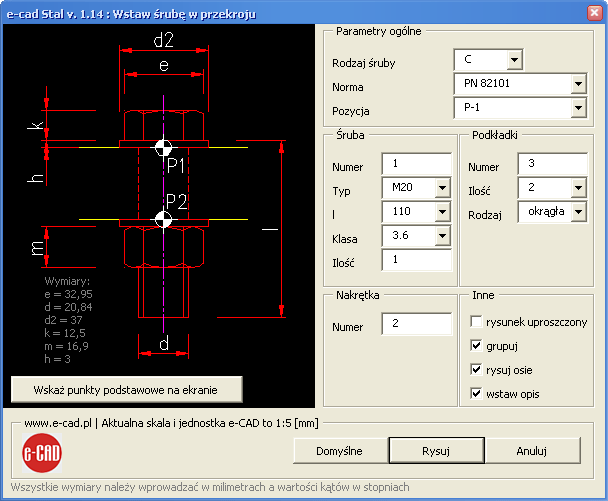
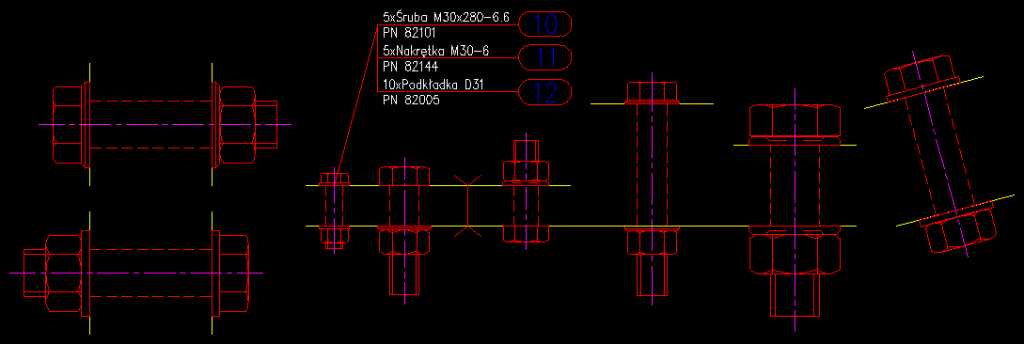
- Draw bolts in side cross-section –
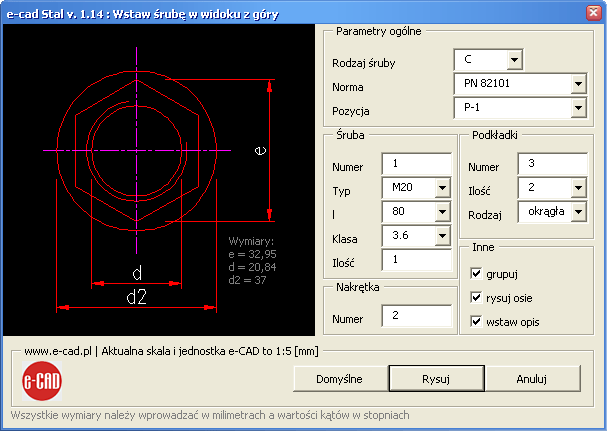
[E-SRP] - Draw bolts in top view –
[E-SRG]
Simplified Nut Symbols:
- M10 nut symbol –
[E-M10] - M12 nut symbol –
[E-M12] - M16 nut symbol –
[E-M16] - M20 nut symbol –
[E-M20] - M24 nut symbol –
[E-M24] - M27 nut symbol –
[E-M27] - M30 nut symbol –
[E-M30]
Position Management and Descriptions:
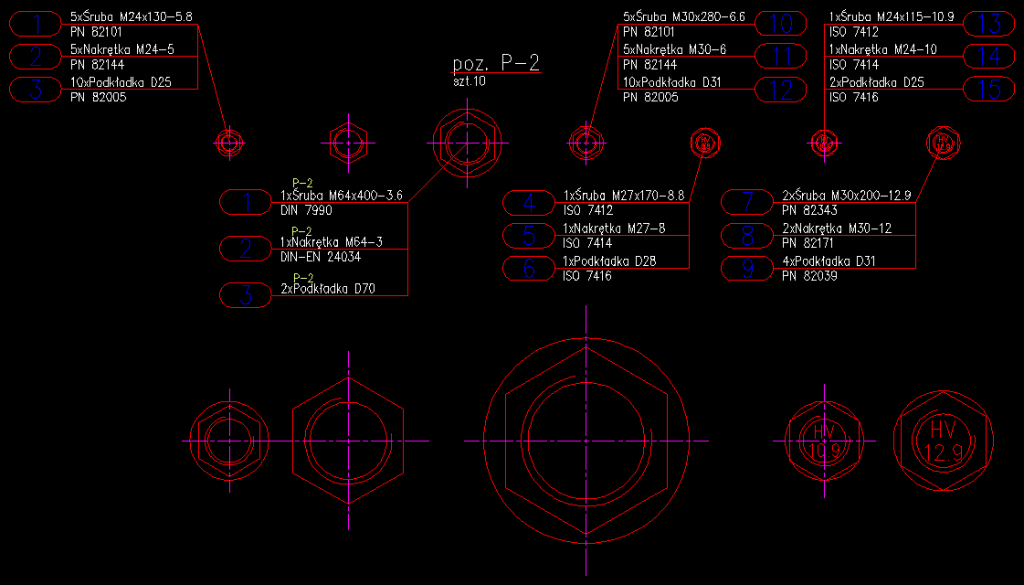
- Assign “Master Position” description to bolts –
[E-OPSR] - Manage Master Position descriptions for bolts –
[E-MOPSR] - Multi-manager for Master Position bolt descriptions –
[E-MMOPSR] - Assign Master Position description to multiple bolt labels –
[E-NOPSR]
Editing Bolt Descriptions:
- Renumber bolt descriptions –
[E-RSR] - Bolt label manager –
[E-MOSR] - Multi-manager for bolt labels –
[E-MMOSR] - Search descriptions for bolts, nuts, washers –
[E-SNRSR] - Remove all search markers –
[E-UZS]
Schedules and Exports:
- Quantity and mass summary for bolts, nuts, and washers –
- to DWG drawing
[E-ZSR] - to Excel spreadsheet
- to CSV text file
- to DWG drawing
Important Note
The e-CAD Base Module is required to use any additional add-ons in the e-CAD suite:
- e-CAD Steel
- e-CAD Steel Screws
- e-CAD Coded Bars
- e-CAD Reinforced Concrete
- e-CAD Reinforced Concrete Meshes
Industry Applications
- Construction
- Steel Structures
- Reinforced Concrete
- Timber Structures